I am doing a lot of things to make studying for this AI master’s degree less painful.
Flashcards. Multiple choice question banks. Sprint-based study sessions. Structured Markdown notes. I have, at this point, an entire ecosystem of learning artefacts — which is either a sign of genuine engagement with the material or an elaborate form of procrastination. I choose to believe it’s the former.
The latest addition: audio. The idea is simple enough. I spend a lot of time commuting, walking, waiting. My study materials exist as Markdown files. At some point it occurred to me that these two facts could be related.
Before we get into how this works: here’s what the intro of this very article sounds like when converted with the setup described below.
That’s the first three paragraphs, read by en-GB-SoniaNeural, with Markdown formatting stripped automatically. No manual editing, no account, no character limit.
The Problem with “Free” TTS Tools
There are plenty of online text-to-speech services. The workflow is obvious: paste text, download MP3, listen on the go.
In practice, this turned into: create account, start free trial, hit a character limit at exactly the wrong moment, consider upgrading, close the tab in mild annoyance.
The other issue — and this matters more than the cost — is that I don’t actually know what these platforms do with the text I paste in. My study materials are derived from course content. Pasting chunks of academic text into a random online service and hoping for the best isn’t exactly a principled data handling decision.
So I asked Gemini instead.
Asking Gemini to Think Through It First
My starting prompt was roughly: I’d like to convert written text to speech. How do I do this for free, in a way that lets me download it as an MP3? For example, this text: […] — what are my options?
Gemini came back with several options, ranging from browser-based tools to a Windows desktop application called Balabolka. But the one that caught my attention was at the bottom of the list: a Python library called edge-tts.
The pitch: it uses Microsoft’s Azure neural voices — the same ones behind the unusually good “Read Aloud” feature in Microsoft Edge — without requiring an API key or any payment. No account, no character limits, no data going anywhere that isn’t my own machine. Just install the library and run a script.
For someone who spends their days in VS Code anyway, this was the obvious choice.
Getting It Running
Installation is one line:
pip install edge-tts
The most basic usage is also just one line:
edge-tts --text "Your text here" --write-media output.mp3
You can list available voices — there are quite a few, across many languages:
edge-tts --list-voices
For German, for instance: de-DE-KillianNeural (male) or de-DE-KatjaNeural (female). For the English academic texts I’m converting, I ended up with en-GB-SoniaNeural, which reads technical content cleanly without sounding like a 2009 GPS navigation system.
In Jupyter Notebook inside VS Code, the full script looks like this:
pip install edge-tts

import edge_tts
from IPython.display import Audio, display

VOICE = "en-GB-SoniaNeural"
OUTPUT_FILE = "output.mp3"
TEXT = "Your text here."

communicate = edge_tts.Communicate(TEXT, VOICE)
await communicate.save(OUTPUT_FILE)

display(Audio(OUTPUT_FILE))
This worked immediately. Which was, frankly, a little suspicious.
The Markdown Problem
My study materials are Markdown files. Which means they contain # for headings, ** for bold, * for bullet points, and similar.
The TTS engine does not know what Markdown is. It just reads whatever it sees. So instead of hearing a clean sentence about knowledge representation in AI, I was hearing: “Hash hash Introduction. Star star Modular Architecture Star star colon The fundamental…”
Not ideal for a relaxing commute.
I went back to Gemini. The suggestion: instead of manually cleaning the text before each conversion, add a preprocessing function that strips Markdown formatting automatically using regular expressions. Paste raw Markdown in; get clean audio out.
Here’s the full version with that preprocessing step included:
pip install edge-tts

import re
import edge_tts
from IPython.display import Audio, display

def strip_markdown(text):

    """Removes common Markdown formatting for clean TTS output."""

    # Remove heading markers (#, ##, etc.) at the start of lines
    text = re.sub(r'^#+\s+', '', text, flags=re.MULTILINE)

    # Remove bold and italic markers (**, *, __, _)
    text = re.sub(r'\*\*|__|\*|_', '', text)

    # Remove bullet point markers at the start of lines, keep the text
    text = re.sub(r'^\s*[\*\-+]\s+', '', text, flags=re.MULTILINE)

    # Collapse multiple blank lines
    text = re.sub(r'\n\s*\n', '\n\n', text)
    return text.strip()

# Your raw Markdown text
TEXT_RAW = """

## Your Study Material Here

This is where you paste your **Markdown-formatted** text.

- Bullet points like this
- Will be cleaned automatically

"""

TEXT_CLEANED = strip_markdown(TEXT_RAW)

VOICE = "en-GB-SoniaNeural"
OUTPUT_FILE = "study_audio.mp3"

print("Markdown cleaned. Starting conversion...")
communicate = edge_tts.Communicate(TEXT_CLEANED, VOICE)
await communicate.save(OUTPUT_FILE)
print(f"Done. Saved as: {OUTPUT_FILE}")

display(Audio(OUTPUT_FILE))
What the cleanup does, specifically:
- Removes
#characters so the voice reads “Introduction” instead of “Hash Introduction” - Strips
**and*so bold text doesn’t get read as “star star” - Removes bullet point markers at the start of lines while keeping the sentence itself
- Collapses excessive blank lines that would create awkward silences
After this, the audio sounds like someone actually reading a document. Not a person, exactly — but a reasonably fluent, properly-paced synthetic voice that handles AI terminology without getting confused by acronyms.
Try It Yourself — No Setup Required
The Jupyter Notebook setup works well enough if you already have a local Python environment. But if you don’t, there’s no need to install anything.
I’ve shared the notebook on Google Colab: Open in Google Colab
The notebook is view-only, so nothing will happen to my version if you poke around. To run and edit it yourself, save a copy to your own Google Drive via File → Save a copy in Drive. You’ll need a Google account for that — but nothing else.
Once you have your copy, the workflow is straightforward:
In the code cell under “Your raw Markdown text”, replace the placeholder with your own text. Markdown formatting is fine — the cleanup function handles it automatically.
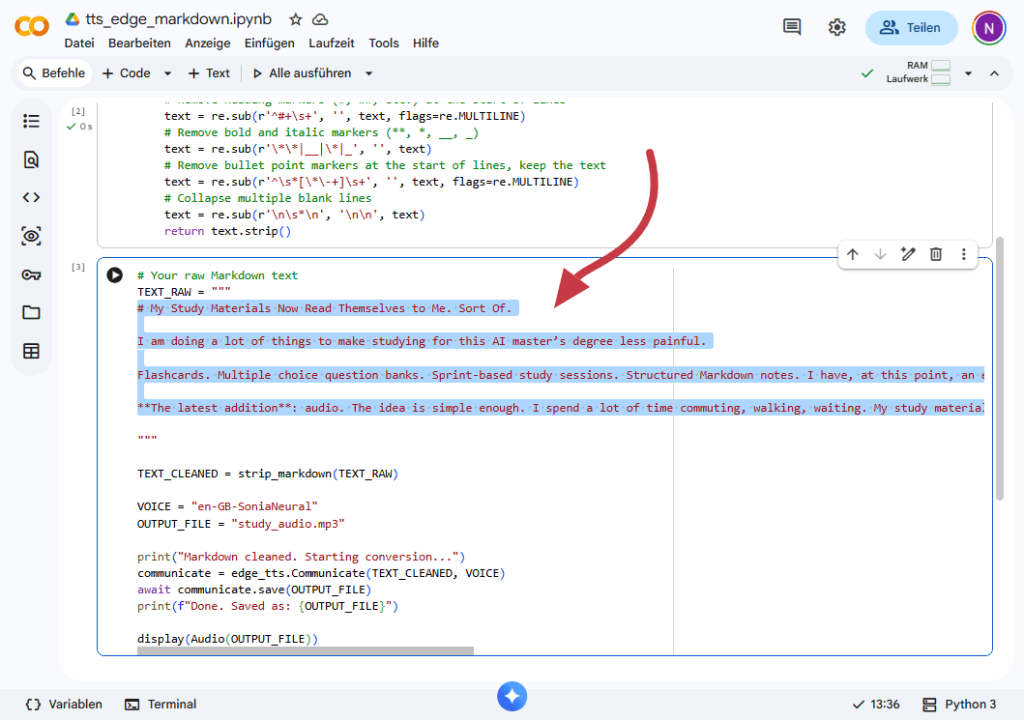
Run all cells. The audio player appears at the bottom of the notebook. Use the three-dot menu to download the MP3.
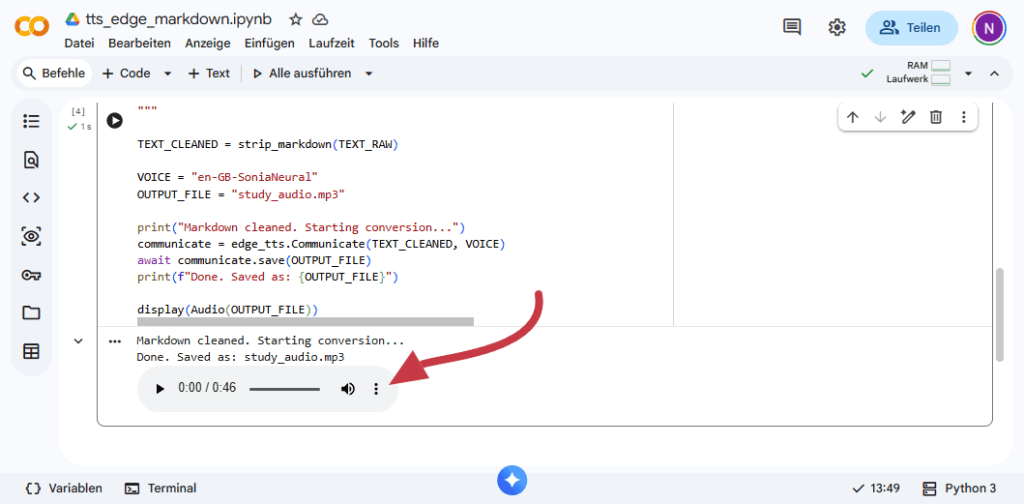
That’s it. The file is on your machine and ready to transfer to your phone.
A Few Things Worth Knowing
Microsoft built a cloud-based speech synthesis service that powers the Read Aloud feature in the Edge browser. At some point, someone in the open source community reverse-engineered how Edge communicates with that service — which requests it sends, in which format, with which authentication tokens — and rebuilt it as a standalone Python library. That library is edge-tts. It’s not from Microsoft. It was developed by a community contributor named rany2, and Microsoft has neither officially endorsed it nor explicitly prohibited it.
In practice, this means: it works, it’s free, and you get the same high-quality neural voices as Edge. It also means Microsoft could change the underlying service at any point without warning, and the library would need to catch up. This has already happened at least once. The library is actively maintained, but it’s not something you’d want to build a production service on. For converting your own study materials to audio — it’s fine.
For personal study use, this is a non-issue. For anything that needs to be reliably in production, a proper API with a key and rate limits is the more honest choice.
Also: the voices are genuinely good. Better than I expected, particularly for technical content. There’s still a slight uncanny quality to longer stretches of text — something about the sentence rhythm — but it’s entirely listenable at 1.25x speed, which is where I’ve settled.
A note on process: The ideas, experiments, and the mild frustration with online TTS character limits are mine. Claude helped me shape this into readable English.