This morning, somewhere between my first tea and my first to-do, I stumbled over a video by Jay E from RoboNuggets, “These 19 Jev-Claude use cases are blowing people’s minds (with prompts)”, about Jev, a small decision model with its own API. One of the use cases in the accompanying guide caught my eye right away: a Chrome extension that classifies your X (x.com) feed. I don’t spend much time on X, but LinkedIn is where my own feed annoys me every day, so I decided to try the same idea there and see how far a weekend rabbit hole can get.
My LinkedIn feed has been annoying me for a long time. The algorithm seems to believe I want to see ads, strangers’ promotions, and “someone I barely know likes this” posts all day. What I actually want to read about is how people use AI in practice: real use cases for Claude, Hermes and other AI agents, and what works (or doesn’t) once the demo is over. Next to that, I like staying in the loop on AI in teaching, university news and climate. Somehow I still have to teach the algorithm that, and so far it isn’t a quick learner.
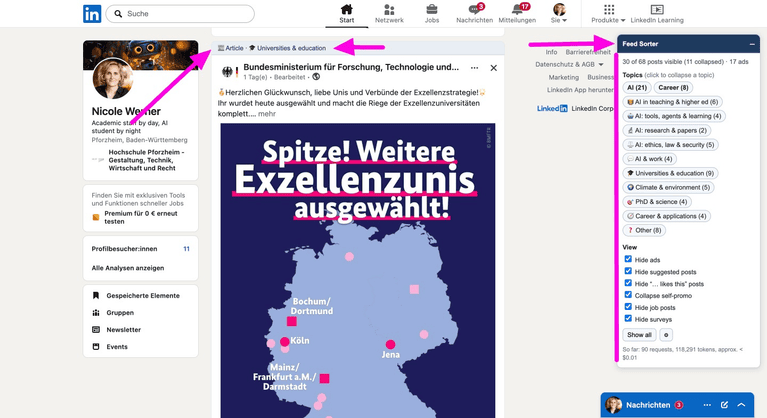
TL;DR I built a Chrome extension with Claude that labels every post in my LinkedIn feed with a type and a topic, and lets me collapse the topics I don’t want to read. What this post covers:
- The tool: Jev, a small model that picks one option from a list you define and tells you how sure it is.
- The build: one chat with Claude Sonnet 5.5 at medium effort, no coding by me, a handful of prompts.
- My feed in numbers: about a quarter of the posts I looked at were ads, and more than a third of the rest were about AI.
- The cost: a fraction of a cent for 46 posts.
- The catch: LinkedIn’s terms of use and where the post text goes.
- Make it yours: the topics are editable, but I’m not sharing the extension itself (see below).
- The result: it sorts my mixed German and English feed better than I expected.
A note on how this post came about. My sidekick for this project was Claude Sonnet 5.5 (medium effort). It built the extension with me, read through the Jev documentation and TypeSafe’s terms and privacy policy, and helped me draft and tighten this article, while I decided what to build and what felt right. I’m not a lawyer and not a security expert, so what I write about LinkedIn’s terms and about privacy is just my reading of the documents, without any claim to being correct or complete. Think of this post as a diary or a log of what I’m trying out and what keeps me busy right now. There might well be a follow-up.
Why my feed annoys me
If I’m honest, I’m not sure why I’m still on LinkedIn. Probably because the academic world is there, and that’s where I’d expect to find the people I want to learn from. But what I find is a lot of blur and very little I can act on right away. YouTube and a handful of newsletters give me far more that I can actually use. My feed is a mix of German and English, and it is full of the same few things: ads, job postings, “I’m thrilled to announce” milestones, “have you seen this?” posts, and posts that only show up because a contact reacted to them.
Maybe I should simply leave LinkedIn one day. Until then, I want to make it more bearable. What I’d like is simple: tell me what each post is about, and let me choose what to read now.
What is Jev, and what is it not?
Jev, from TypeSafe, is not a chatbot. It does not write anything. You give it a text and a question with a list of options (for example “What is the main topic of this post?” with ten topics, each with a short description), and it answers with exactly one option plus the probability for each. It’s priced per token (about $0.042 per million tokens when I looked), and several questions can be asked in one request.
Two things from the docs matter for this project. First, English is its strongest language, so the descriptions I send are in English. Second, I’m sending German posts to a model that is strongest in English, which made me curious. I did not run a formal accuracy test, but I checked a lot of labels against my own judgment along the way, and it sorts my mixed German and English feed decently.
That’s why it fits this job: sorting posts is classification, not writing.
How I built it: one chat, a handful of prompts
Let me be upfront about how this was built, because it differs from my usual routine. No VS Code, no repo, no deployment. The whole thing happened in a single chat with Claude Sonnet 5.5 at medium effort. Claude had a browser window logged in to my LinkedIn (I logged in myself, I don’t hand over my password) and a workspace to write and zip the extension.
Here are my prompts, summarized, and what came back:
- The idea. I asked whether I could build a Chrome extension that scans my LinkedIn feed, lets me choose categories like university news, climate and AI, and labels each post. And how to connect Jev. Claude’s answer: yes, with labels and filters. It can only work on the posts that are already loaded, not on the whole feed.
- A feed test first. I asked for a test run on my feed to get category suggestions, since my feed is mixed German and English. Claude: read the posts in the browser, found that this page loads five more posts per “Load more” click, and proposed a first set of categories.
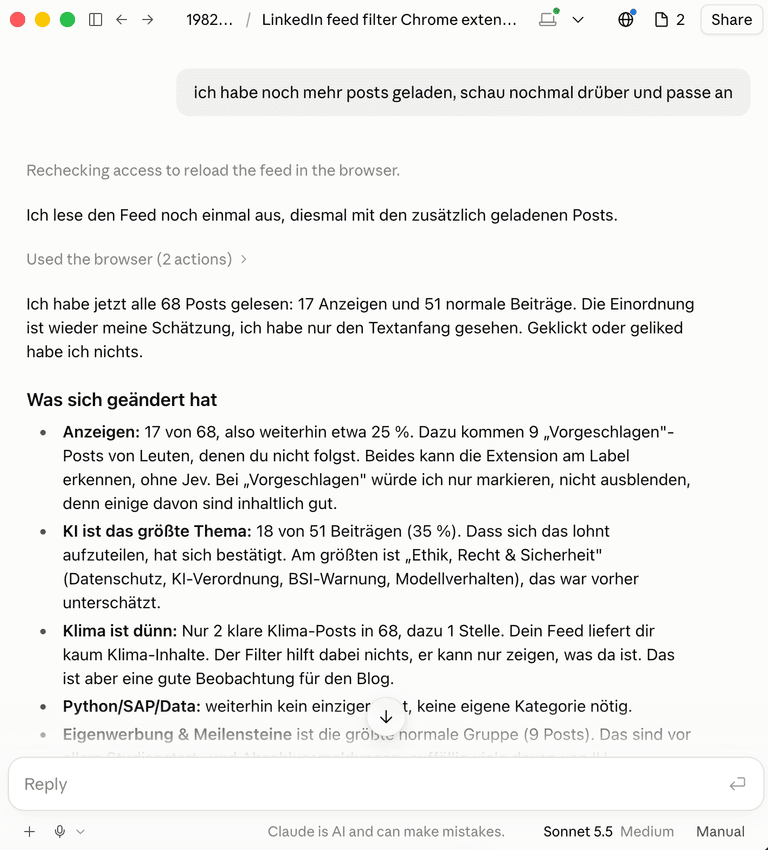
- More data. I loaded more posts and asked Claude to look again and adjust. Claude: worked on 68 posts, refined the categories and built a spreadsheet with counts and design decisions.
- Due diligence. I asked Claude to check TypeSafe’s terms and privacy policy and tell me if there was anything important. More on that below.
- The vendor’s own instructions. TypeSafe publishes install instructions for AI agents. I pasted them in, and topped up $10 on the TypeSafe website to get an API key. Claude compared the skill with the official docs, and where the two disagreed (the skill suggested German is no problem, the docs say English is strongest 🤪) it followed the docs.
- Testing in the real feed. I installed it, sent screenshots and iterated:
- “Why do some posts look half-sized?” Collapsed self-promo posts. I decided to keep them that way.
- “Instead of showing only one topic, collapse things, because LinkedIn starts loading new posts.” This one changed the design (see below).
- “No, the other way round, I want the topic I click to be collapsed.” A plain misunderstanding between us, fixed in one round.
- “Can we also hide the ‘X likes this’ posts?” Added as a checkbox.
- Packaging. I asked Claude to translate everything into English because I want to blog about it, and whether readers could adjust the categories themselves very easily. That became the topic editor. (I first thought about offering the extension as a download. I changed my mind, more on that below.)
My own effort was: say what feels wrong, look at the result, repeat. No code, but a lot of looking at the screen.
What my feed is made of
The test set was 68 posts from my own feed, loaded by repeatedly pressing “Load more”. Of these, 17 were ads (25 %). Among the remaining 51 posts, 18 were about AI, only 2 about climate, and the language split was 31 German, 19 English and 1 Polish.
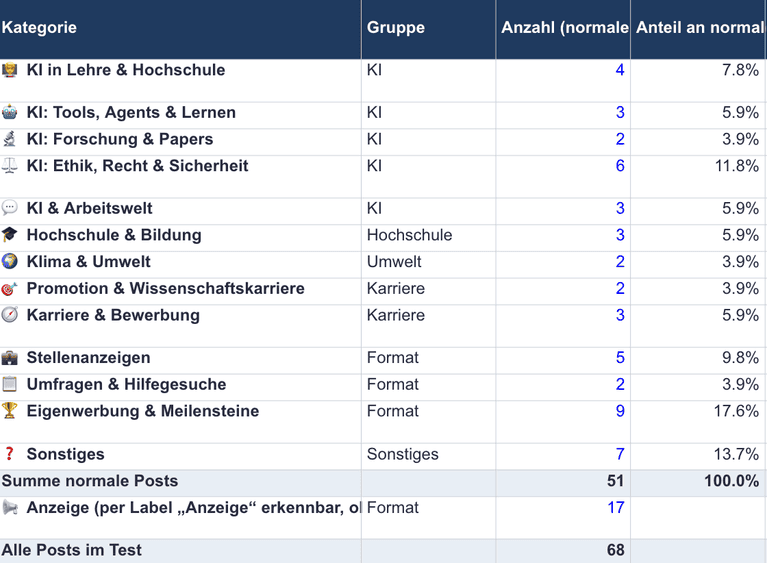
So the topic I care most about for work (AI) is well represented, and climate, which I wanted to see more of, is almost absent. Nothing changes that except me following different people, but now I have numbers.
From these posts, the categories came out as two questions per post: the type (article, job, survey or help request, self-promo or milestone, other) and the topic (ten topics, such as AI in teaching, AI tools, AI research, AI ethics and law, AI and work, universities and education, climate and environment, PhD and science, career, other).
The extension
The extension is a Chrome extension, but it runs in any Chromium-based browser. I use Brave, a privacy-focused browser built on Chromium. For every post it reads the text (without the author) and sends only that to Jev. It then adds a label on top of each post, like “📰 Article · 🎓 Universities & education”. A small panel on the right lets me:
- click a topic to collapse all posts of that topic,
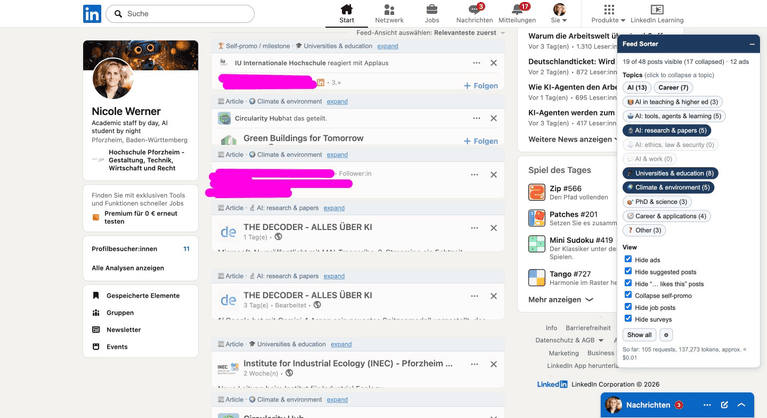
- tick View checkboxes to hide ads, suggested posts, “… likes this” posts, job posts and surveys, and to collapse self-promo posts,
- see how many posts are visible and how much it has cost so far.
Ads, suggested posts and “likes this” posts are recognized by their header lines, without Jev. Results are cached, so the same text is never classified twice.
Where does the Jev API key go? Into the extension’s options page. I paste it there once, and it is stored only in my browser (in the extension’s local storage). It is never written into the code, it never appears on LinkedIn pages, and the input field is emptied after saving. The only place the key is ever sent to is TypeSafe’s API, with each request. I keep it out of chats, screenshots and files. If you build your own version, do the same: anyone who has your key can spend your balance.
What I learned while building it
LinkedIn’s class names are useless. They look like random hashes and change often. The extension uses stable markers on each post instead. If LinkedIn changes its HTML, this is the first place that will break.
Hiding posts makes LinkedIn load more. My first version hid everything I hadn’t selected. The feed got shorter, and LinkedIn started loading new posts on its own, which meant more classifying and a feed that kept moving. Collapsing instead of hiding keeps the feed the same length. Small UI decision, big effect.
One tiny detail can silently break everything. The extension finds the start of a post’s text by looking for the time line (“23 Std.”). My first pattern didn’t match “Std.” because of a regex word-boundary detail, and 73 posts came through with no text. Claude found it by checking the data, not by guessing, and fixed it.
Make it yours: your own topics
Ten fixed topics are my topics. Yours are probably different. So the options page has a topic editor: each row has an icon, a name, a group and a description. The description is what Jev actually reads, so it matters most.
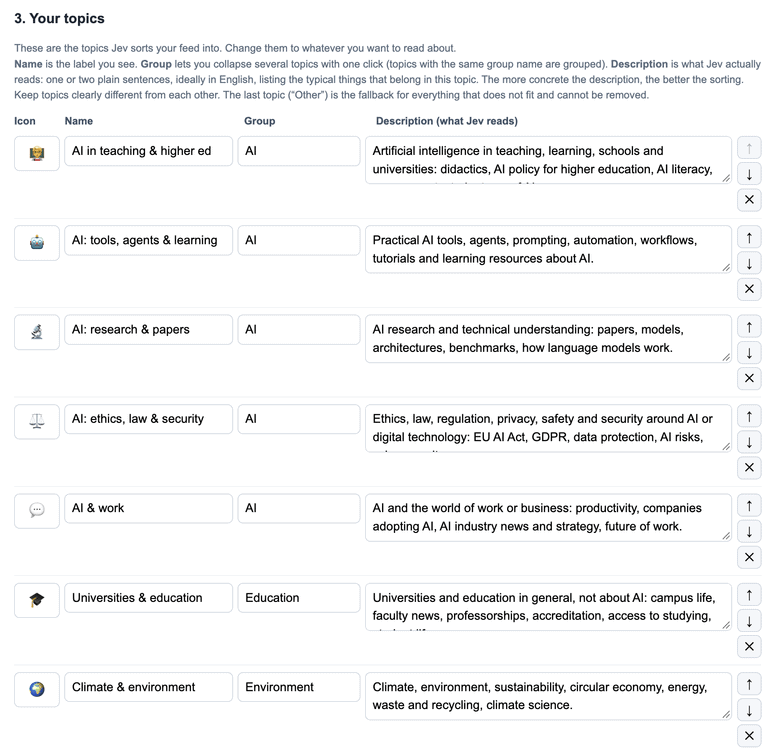
A few tips from this weekend:
- Be concrete. “Quantum computing: qubits, error correction, quantum algorithms” works better than “Quantum stuff”.
- Keep topics clearly different from each other. If two descriptions overlap, Jev has to guess.
- Descriptions work best in English, but the posts can be in any language.
- Five to twenty topics is a sensible range. “Other” always stays as the fallback.
After saving, all posts in your feed are sorted again automatically. You can also export your topic list as text and import somebody else’s, so topic lists can be shared.
Not sharing the extension
I decided not to offer this extension as a download. It blocks ads on LinkedIn, and I don’t want to push others (or myself) into a conflict with LinkedIn’s terms, or into having an account banned over it. Honestly, a ban might even make the decision about whether I still want to be on LinkedIn for me 🤪. But that’s a decision I’d rather make myself.
What I can share is how I got there: the prompts above are all you need to build your own version with Claude in a weekend, and you can adapt it to your own topics. Just keep in mind that you’d be using a tool that reads and changes your feed, which LinkedIn’s terms don’t allow, so do this at your own risk.
What it costs
Running it: about 1,340 tokens per post. With Jev’s price that is roughly 0.26 cent for the 46 posts I classified in my first run, or around 6 cents for 1,000 posts. My $10 top-up will last a very long time.
Building it: The conversation with Claude is the expensive part, as with my job radar, but this time I could measure it. Building the extension, working through the topics, and editing this article together took about a quarter of one five-hour usage window and 4 % of my weekly limit on the Claude Pro plan. Since Pro is a flat subscription, that didn’t cost me anything extra. The whole project took me at most one hour of my own time. Everything after that is a few cents of Jev.
The honest part
Two things you should know before you try this.
LinkedIn’s terms of use. LinkedIn forbids automated reading and changing of its pages. This extension only works with what is already shown to you, and it never clicks, likes, comments or scrolls (you press “Load more” yourself). That is a much lighter touch than a scraper, but a residual risk remains, and it’s your account. I use it only for myself, and I would not publish it in the Chrome Web Store, partly because the API key would need a server of its own.
Privacy. The text of other people’s posts goes to TypeSafe in the USA. From my reading of their terms and privacy policy (I’m not a lawyer): inputs are not used for training, processing happens in the US with standard contractual clauses in the data processing agreement, and I couldn’t find a stated retention period for inputs. The terms also include arbitration in San Francisco and a very low liability cap. If that is a problem for you, don’t use it, or at least don’t use it with sensitive content.
Sources